---
title: How to Set Up and Use the m19 Data Warehouse
description: How do I connect to my m19 data in BigQuery?
---
[Skip to content](https://help.m19.com/data-warehouse-bigquery#main-content)
English
Show submenu for translations
[Need more help?](https://help.m19.com/kb-tickets/new)
![m19-transparent.png\]](https://help.m19.com/hs-fs/hubfs/m19-transparent.png?height=50&name=m19-transparent.png)
Open main navigation
Close main navigation
- English
Show submenu for translations
- [Need more help?](https://help.m19.com/kb-tickets/new)
- [m19.com](https://www.m19.com/)
[m19.com](https://www.m19.com/)
Help will always be given at M19 to those who ask for it.
- There are no suggestions because the search field is empty.
1. [Help Center](https://help.m19.com/)
2. [Analysis & Performance Hub 🧠](https://help.m19.com/analysis-performance-hub)
3. [Data wrangling](https://help.m19.com/analysis-performance-hub#data-wrangling)
# How to Set Up and Use the m19 Data Warehouse
## Synchronize your raw Amazon Ads data directly with Google BigQuery to build custom dashboards and advanced reporting.
The **m19 Data Warehouse** is a powerful feature designed for sellers and agencies who need more than just standard reports. By providing a raw copy of your data collected via the m19 API, this tool allows you to plug your data directly into BI tools (like Looker Studio, Tableau, or PowerBI) or your own custom databases.
Because our infrastructure relies on **Google Cloud (BigQuery)**, you can enjoy high-speed querying and seamless integration with the Google ecosystem.
Connecting is a straightforward process of "subscribing" to the data share we've prepared for you. Follow these steps carefully in your Google Cloud Console.
#### **Prerequisites:**
1. **Correct Google Account:** You **must be logged into the same Google account** that you provided in the m19 Analytics Hub setup form. This is how we grant you permission.
2. **Google Cloud Project:** You need a Google Cloud Project with a **billing profile enabled**. 🧾 This is because Google charges you for the queries you run, not for accessing the m19 data itself.
#### **Step-by-Step Connection Guide:**
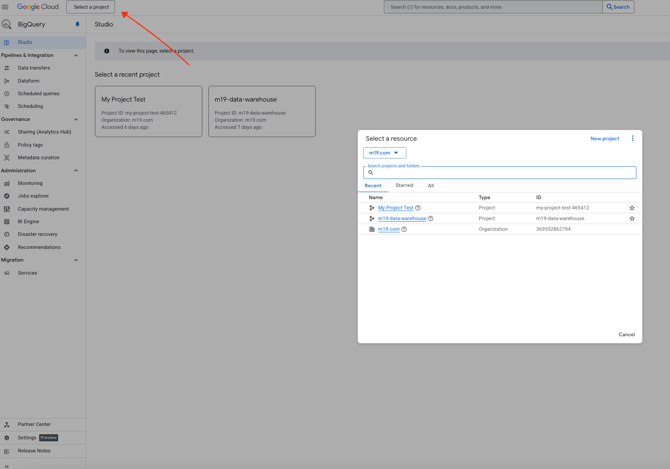
1. **Navigate to BigQuery:** Go to the Google Cloud Console and open the **BigQuery** service.
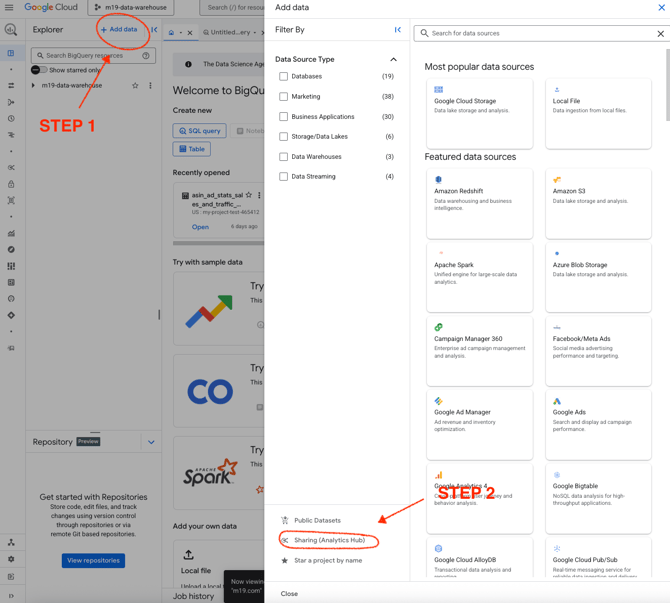
2. **Add Data:** In the BigQuery Explorer panel, click the **"+ ADD"** button.
3. **Select Analytics Hub:** From the menu, choose **"Analytics Hub"**. This will take you to the marketplace for data shares.
4. **Search for m19:** In the Analytics Hub search bar, type **`m19`** and press Enter. You will see the private data share that we have exclusively enabled for your Google account.

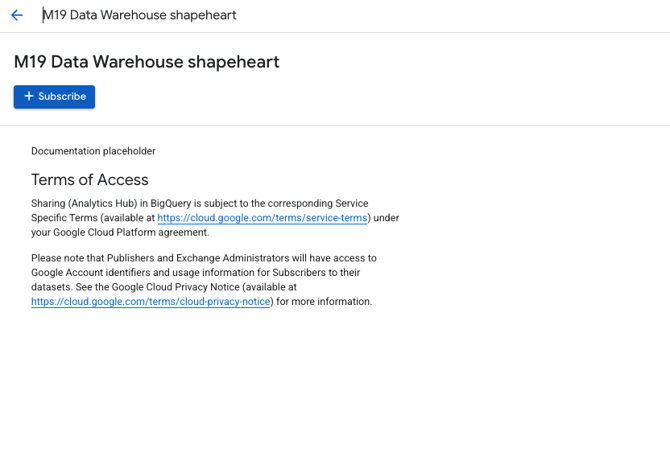
5. **Subscribe to the Share:** Click on the listing for your m19 data share, and then click the **"SUBSCRIBE"** button.
### **I can't find the m19 data share in the Analytics Hub. What's wrong?**
This almost always happens for one of two reasons:
- **Wrong Google Account:** You are likely logged into a different Google account than the one you provided to us. Please log out and sign in with the correct email address.
- **Permissions Delay:** In rare cases, it can take a few minutes for Google's permissions to sync. If you've just created the share in m19, wait 5-10 minutes and try again.
If you still have trouble, please contact our support team.
- [Admin ⚙️](https://help.m19.com/admin-%EF%B8%8F#main-content)
- [Account](https://help.m19.com/admin-%EF%B8%8F#account)
- [Billing](https://help.m19.com/admin-%EF%B8%8F#billing)
- [Getting Started 🚀](https://help.m19.com/getting-started#main-content)
- [M19 Encyclopedia](https://help.m19.com/getting-started#m19-encyclopedia)
- [Dashboard & Features 💻](https://help.m19.com/dashboard-features#main-content)
- [Strategies](https://help.m19.com/dashboard-features#strategies)
- [Products](https://help.m19.com/dashboard-features#products)
- [Metrics](https://help.m19.com/dashboard-features#metrics)
- [Traffic management](https://help.m19.com/dashboard-features#traffic-management)
- [Budget management](https://help.m19.com/dashboard-features#budget-management)
- [Events](https://help.m19.com/dashboard-features#events)
- [Tools](https://help.m19.com/dashboard-features#tools)
- [New Features](https://help.m19.com/dashboard-features#new-features)
- [Analysis & Performance Hub 🧠](https://help.m19.com/analysis-performance-hub#main-content)
- [Catalog](https://help.m19.com/analysis-performance-hub#catalog)
- [Strategies and campaigns](https://help.m19.com/analysis-performance-hub#strategies-and-campaigns)
- [Data wrangling](https://help.m19.com/analysis-performance-hub#data-wrangling)
- [Amazon Connections ⛓️](https://help.m19.com/amazon-connections-%EF%B8%8F)
- [Best practices 👑](https://help.m19.com/best-practices#main-content)
- [Advanced Strategies](https://help.m19.com/best-practices#advanced-strategies)
- [Analysis](https://help.m19.com/analysis)
- [Updates and New Releases](https://help.m19.com/updates-and-new-releases)
[](https://www.m19.com/)
Copyright © 2026, m19